Last week I ran Google PageSpeed on a client’s site and got a 34 on mobile. The culprit was images. A single hero image was 4.2 MB. Product photos were 3000px wide, served as uncompressed PNGs. The page took 11 seconds to load on a perfectly decent connection.
This happens more often than anyone admits. You export from Figma or Lightroom, upload directly to your CMS, and everything looks fine on your office Wi-Fi. Real users on a 3G bus connection get a spinner for eight seconds and hit the back button.
Three things actually matter. A lot of advice online doesn’t.
What actually matters for web images
1. Format choice
This is the biggest lever. A JPG hero image at 1400px wide might be 800 KB. The same image as WebP is around 300 KB. As AVIF, closer to 200 KB.
WebP has 97%+ browser support now. AVIF is at 93% and climbing. Unless you’re catering to some corporate browser that hasn’t been updated since the last World Cup, there’s no reason to serve JPG or PNG for photos on the web.
PNG still makes sense for transparency and sharp edges: logos, icons, screenshots with text. For photos, WebP or AVIF.
2. Dimensions
Nobody needs a 4000px wide image on a website. Most content areas are 800-1200px. Even full-bleed hero images rarely need more than 1600px on a standard display, or 2400px for retina.
Resizing from 4000px to 1600px cuts file size by 75% before you even touch compression. This is the step most people skip, and it’s the easiest win.
3. Compression quality
Most guides agonize over finding the “perfect” quality setting. In practice, 80% is visually identical to 100% for photos on the web. At screen resolution, in a browser, side by side, you cannot tell the difference.
Below 70% you start seeing artifacts: halos around edges, banding in skies and skin tones. The sweet spot is 75-85%. I default to 80% and only go higher for portfolio sites or product photography where someone might actually zoom in.
How I handle this with Picmal
I built Picmal for this exact workflow, and it’s what I use daily.
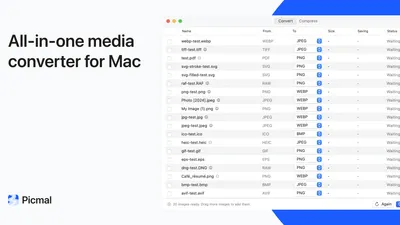
Drag images in. Pick WebP (or AVIF). Set quality to 80%. Set a max width if needed. Convert. Done.
What makes this work for real use:
- Batch processing. Drag an entire folder of product photos. Hundreds of files. Picmal keeps the folder structure, so the output is ready to upload straight to your CMS.
- WebP and AVIF output. Most free tools can’t export to either format. Picmal handles both.
- Nothing leaves your Mac. No uploads, no servers. More on why this matters below.
- $15.99, once. No subscription. You buy it and it works.
Free alternatives (honest takes)
There are genuinely good free options. Whether they’re good enough depends on volume and format needs.
macOS Preview
Built into every Mac. Open an image, File > Export, choose JPEG, drag the quality slider down. It works.
The problems: no WebP or AVIF export. Batch processing exists if you wrestle with the sidebar, but it’s clunky enough that you’ll stop doing it after the second time. No resize during export. Fine for one image. Painful as a daily habit.
Squoosh (squoosh.app)
Google’s web-based compression tool. Genuinely good. Shows a before/after comparison, supports WebP and AVIF, and the compression algorithms are solid.
The catch: one image at a time. Fifty product photos means fifty drag-and-drops, and by the twentieth you’ll be questioning your life choices. Processing happens client-side in the browser, so your files don’t technically hit a server, but you still need an internet connection to load the tool.
ImageOptim
A well-made Mac app that’s been around for years. Drag files in, it compresses them in place. Good for lossless and lossy optimization of JPG and PNG files.
The limitation: it squeezes existing formats but can’t convert to WebP or AVIF. You get slightly smaller JPGs, not the 60-70% reduction you’d get from switching formats.
TinyPNG / TinyJPG
Web-based, works well, supports WebP now. Free tier limits you to 20 images at a time with a 5 MB per-file limit.
The tradeoff: your images get uploaded to their servers. For a personal blog, probably fine. For client work with unreleased product photos, maybe don’t.
The workflow that actually works
After doing this for dozens of sites, here’s what I’ve settled on:
-
Resize to max display width. Figure out the widest your image will ever appear on the site. Multiply by 2 for retina. That’s your max width. For most sites: 1600px for hero images, 1200px for content images, 800px for thumbnails.
-
Convert to WebP. If you need to support very old browsers, keep a JPG fallback. Most sites don’t need to anymore.
-
Compress to 80% quality. Don’t overthink this. 80% is the right default for 95% of web images.
-
Check your results. After compression, a typical 1600px-wide photo should land between 100-300 KB as WebP. If it’s over 500 KB, something’s off — usually the dimensions are still too large.
In Picmal, this is one operation: set the format, quality, and max width, drag your folder in, and let it run. The output is ready to upload.
Why compressing locally matters
If you build sites for clients, you’re handling their product photos, unreleased designs, screenshots of internal dashboards, sometimes prototypes that haven’t been announced yet.
Upload those to TinyPNG or any web tool and they hit someone else’s server. Even if the service deletes files after processing, you still transmitted them. For some clients, that’s a flat no. For healthcare or legal, it’s a compliance problem.
Processing locally means the files never leave your disk. No terms of service to read, no data processing agreement to sign.
This isn’t theoretical. I’ve had clients ask point-blank whether their images pass through any third-party services. “Everything happens offline, on my machine” is a much better answer than “I think they delete them after an hour.”
If you deal with web images regularly, format conversion + resizing + 80% quality will fix most page speed problems. The tools exist. The hard part is making it a habit instead of uploading raw exports and hoping nobody checks PageSpeed.
Picmal is what I built to make that habit as frictionless as possible.
Related guides
- Need to compress PNGs specifically? See How to Compress PNG Files on Mac — covers lossless and lossy options.
- Want to compress JPEGs? Our JPEG compression guide explains quality levels with actual file size comparisons.
- Converting to WebP for the first time? How to Convert Images to WebP on Mac walks through the full workflow.
- General file size reduction? How to Reduce Image File Size on Mac covers all four levers: resize, compress, convert, and strip metadata.