PNGs are the right format for screenshots, logos, icons, anything with text or sharp edges. They’re also enormous. A single Retina screenshot can hit 5-10MB. A folder of app icons for documentation? 50MB without trying.
The good news: PNGs compress well, especially the kind of images that should be PNGs (flat colors, text, UI elements). A well-compressed PNG is 60-80% smaller with zero visual difference.
The tricky part: PNG compression is lossless by default. There’s no quality slider like JPEG. The savings come from smarter algorithms, reduced color palettes, and stripped metadata.
Here’s how to do it on your Mac.
Method 1: Picmal (batch compression with control)
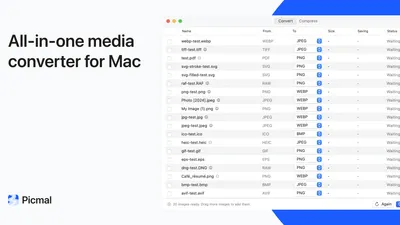
Picmal compresses PNGs in batch with a compression level slider. Drag in files, set your compression level, and convert.
- Drag your PNG files into Picmal (or a whole folder)
- Select PNG as the output format
- Adjust the compression level
- Click Convert
Higher compression levels take slightly longer but produce smaller files. The compression is still lossless — no pixels are changed, the algorithm just works harder to find patterns.
Best for: Compressing folders of screenshots, assets, or exports. Handles hundreds of files and preserves folder structure.
Method 2: Preview (quick and free)
Preview can reduce PNG file size, but not in the way you’d expect. There’s no “compress” button. Here’s the workaround:
- Open the PNG in Preview
- File → Export
- Make sure Format is set to PNG
- Save
Preview re-encodes the PNG, sometimes producing a smaller file (especially if the original came from a tool with lazy compression). Savings vary: sometimes 10%, sometimes nothing at all.
Better approach with Preview: If the PNG is actually a photo (which probably shouldn’t be a PNG), export it as JPEG. File size drops 80-90%. If it genuinely needs to stay PNG (transparency, text, screenshots), Preview won’t help much.
Method 3: Terminal with pngquant (lossy, big savings)
For maximum compression, pngquant reduces the color palette from millions of colors to 256 or fewer. This is technically lossy — colors get quantized — but for screenshots and UI assets, the difference is invisible.
Install it first:
brew install pngquantSingle file:
pngquant --quality=65-80 --output compressed.png input.pngEntire folder:
pngquant --quality=65-80 --ext .png --force *.pngTypical savings: 60-80% reduction. A 5MB screenshot becomes 1MB. The --quality flag sets the acceptable quality range — pngquant will try to hit the lower bound and bail out if it can’t stay above the minimum.
Method 4: Terminal with optipng (lossless)
If you need pixel-perfect, lossless compression:
brew install optipngoptipng -o5 *.pngThe -o flag sets optimization level (0-7). Level 5 is a good balance of speed and compression. Level 7 squeezes out every last byte but takes much longer.
Typical savings: 10-30%. Less dramatic than pngquant, but zero quality loss.
Should you even be using PNG?
Before compressing, ask whether PNG is the right format:
| Image type | Best format | Why |
|---|---|---|
| Photo | JPEG or WebP | PNG photos are 3-5x larger for no benefit |
| Screenshot with text | PNG or WebP | Sharp edges need lossless or near-lossless |
| Logo with transparency | PNG or SVG | SVG if vector, PNG if raster |
| Icon | PNG, ICO, or SVG | Depends on where it’s used |
| UI mockup | PNG or WebP | WebP is smaller with negligible quality difference |
If your “PNG” is actually a photo, converting to JPEG at 85% quality will shrink it far more than any PNG compression ever could. Picmal handles that conversion — drag in the PNG, pick JPEG or WebP, done.
FAQ
Does compressing a PNG reduce quality?
It depends on the method. Lossless compression (optipng, Preview re-export, Picmal’s default) doesn’t change a single pixel — it just encodes the same data more efficiently. Lossy compression (pngquant) reduces the color palette, which can introduce subtle banding in gradients but is invisible in screenshots and UI assets.
What’s the maximum compression I can get on a PNG?
Lossless: 10-30% reduction. Lossy (pngquant): 60-80% reduction. Converting to WebP: 70-90% reduction compared to the original PNG. The right choice depends on whether you need to keep the PNG format or can switch.
Can I compress PNG files without losing transparency?
Yes. All methods listed here preserve the alpha channel (transparency). PNG compression — whether lossless or lossy — doesn’t touch transparency data. Your transparent backgrounds stay transparent.
How do I batch compress hundreds of PNG files?
Drag the folder into Picmal or use the pngquant/optipng commands with a wildcard (*.png). Both approaches handle entire folders. Picmal preserves the folder structure in the output; the terminal commands modify files in place (make copies first).