JPEG compression is the oldest trick in the image book, and somehow still the most useful. A 5MB photo from your camera becomes a 500KB file that looks identical on screen. The format was built for exactly this tradeoff.
The question everyone asks: how much can I compress before it looks bad? More than you think.
The quick version
80% quality is the sweet spot for most uses. The file is 40-60% smaller than 100% quality, and nobody can tell the difference on a screen. Below 70%, halos start appearing around text and banding creeps into skies and skin tones. Above 90%, you’re storing quality your eyes can’t perceive.
Now, four ways to do it on your Mac.
Method 1: Picmal (batch + precise control)
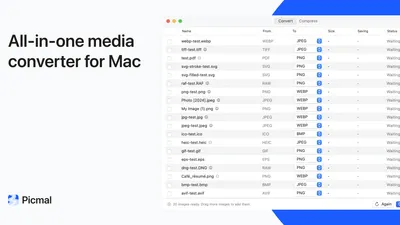
Picmal gives you a quality slider and processes folders of images at once.
- Drag your JPEGs into Picmal (or a whole folder)
- Select JPEG as the output format
- Set the quality slider (80% for web, 85-90% for photos you care about)
- Click Convert
Picmal shows you the output file size so you can see the savings before committing. Metadata stripping is optional — flip it on if you don’t need EXIF data.
Best for: Compressing a batch of photos for a website, portfolio, or email. When you want to see the size savings and adjust quality per batch.
Method 2: Preview (free, quick)
- Open the JPEG in Preview
- File → Export
- Make sure Format is set to JPEG
- Drag the quality slider left
- Watch the file size estimate at the bottom
- Save
Preview’s quality slider goes from “Least” to “Best” with no numbers, which is mildly infuriating, but the file size preview underneath compensates. Aim for middle-to-left for web use.
Batch: Select multiple JPEGs → Open With → Preview → Select All → File → Export Selected Images. You can set quality, but it applies the same level to every image.
Method 3: Terminal with sips
sips can re-export JPEGs at a specific quality, but the syntax isn’t intuitive:
sips -s formatOptions 80 input.jpg --out compressed.jpgThe 80 is the quality percentage. Range is 0-100.
Batch:
mkdir compressed && for f in *.jpg; do sips -s formatOptions 80 "$f" --out "compressed/$f"; doneThis creates a compressed folder and puts the re-encoded files there, leaving originals untouched.
Method 4: ImageOptim (free, lossless)
If you don’t want to touch quality at all and just want to squeeze out whatever the encoder can find, ImageOptim still does this well.
Drag in JPEGs, it re-encodes them with optimized Huffman tables and strips unnecessary metadata. Savings are typically 10-30%. Less dramatic than re-compressing at 80%, but zero quality loss — not a single pixel changes.
ImageOptim is free and open-source. For broader format support or format conversion, see our ImageOptim alternatives guide.
Quality comparison: what does each level actually look like?
Here’s what to expect at different quality levels for a typical photo:
| Quality | File size (relative) | Visual quality | Use case |
|---|---|---|---|
| 100% | 1x (baseline) | Perfect | Source/archive only |
| 95% | ~0.6x | Identical to 100% | Paranoid photographers |
| 85% | ~0.4x | No visible difference on screen | High-quality web |
| 80% | ~0.35x | No visible difference at normal viewing | Standard web, email |
| 70% | ~0.25x | Slight artifacts in gradients | Thumbnails, previews |
| 50% | ~0.15x | Visible artifacts, blocky gradients | Last resort for file size |
The jump from 100% to 85% is where the magic is: massive file size reduction, no perceptible quality difference. Below 70%, diminishing returns set in fast.
FAQ
Does re-compressing a JPEG degrade quality?
Yes, technically. Each open-edit-save cycle puts the image through another round of lossy compression. This is called “generation loss.” For a single re-compression at 80%, the degradation is invisible. But repeatedly opening, editing, and re-saving the same JPEG will accumulate artifacts, like photocopying a photocopy. If you’re editing iteratively, work in PNG or TIFF and export to JPEG at the end.
What’s the difference between lossless and lossy JPEG compression?
Lossy compression (reducing the quality percentage) discards image data to achieve smaller files. Lossless optimization (what ImageOptim does) re-encodes the same data more efficiently without changing a single pixel. Lossy gives bigger savings (40-80%); lossless gives smaller savings (10-30%) but zero quality loss.
Should I compress JPEGs for email attachments?
Yes. Most email providers limit attachments to 20-25MB. A folder of uncompressed iPhone photos hits that limit fast. Compress to 80% quality and resize to 1600px wide — that brings a typical 8MB photo down to about 400KB. See our guide to reducing image file size for more tips.
Is WebP better than compressed JPEG?
For the web, yes. WebP achieves 25-35% smaller files than JPEG at the same visual quality. If your images are going on a website, converting to WebP is a bigger win than just re-compressing the JPEG. Picmal handles that conversion too.